Digitally sign PDF
Install Okular PDF viewer
sudo pacman -S okular
TODO
Import certificate into Mozilla Firefox
You will need a *.p12 file of your certificate (e.g. sigen-ca g2 2483790412026.p12).
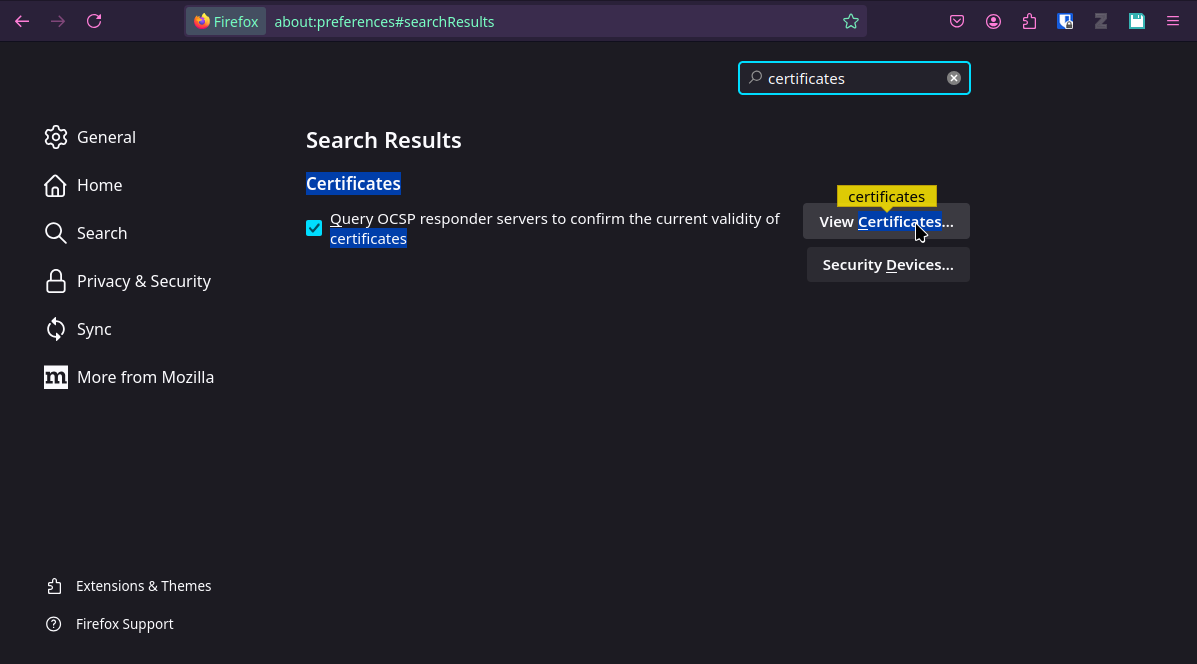
Open Mozilla firefox and go to Settings.
Search for
certificatesand click View Certificates
Select Your Certificates and click Import.
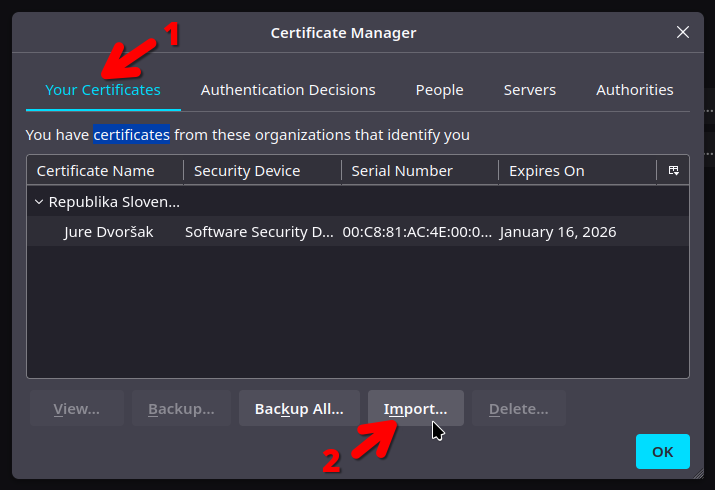
Now find your
*.p12file and open it. Than enter your password (you should have gotten it when you claimed your certificate).
You have successfully imported your certificate into Firefox.
Add certificate in Okular
You should now have certificate imported in Mozilla Firefox.
Create a directory to store your Okular certificates (e.g.
~/cert/okular)
mkdir -p ~/cert/okular
Copy
key4.dbandcert9.dbfiles from~/.mozilla/firefox/XXXXXXXX.default-release/(whereXXXXXXXXis random string) to newly created directory.
cp ~/.mozilla/firefox/18yapjsu.default-release/key4.db ~/cert/okular/
cp ~/.mozilla/firefox/18yapjsu.default-release/cert9.db ~/cert/okular/
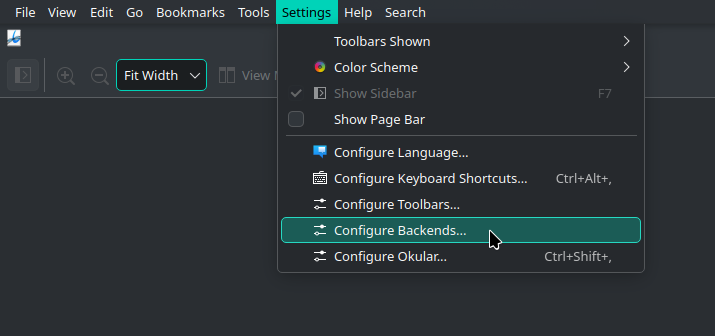
Open Okular expand Settings tab and click Configure Backends.
Now select PDF in the sidebar, select Custom in Certificate Database group and click Open File Dialog button to select previously created directory (e.g.
~/cert/okular).
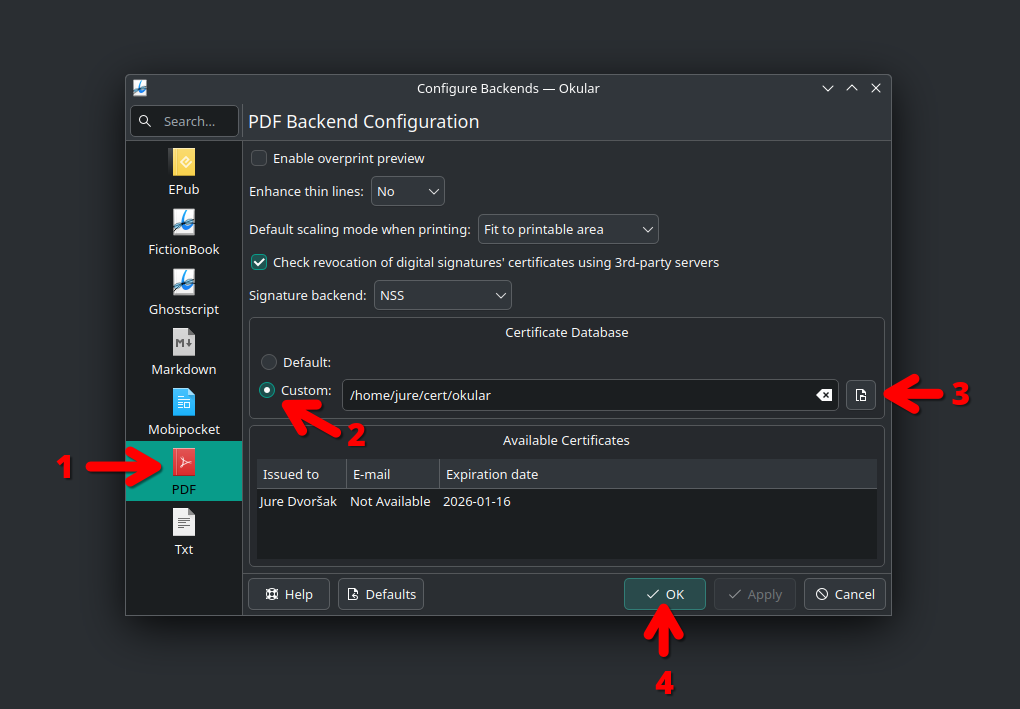
Click OK and close Okular. Now you are ready to digitally sign PDF dockuments (after you reopen Okular).